
Task Management
Streamlines the organization, tracking, and execution of tasks across your cloud environments.
Overview
The Task Management feature provides a centralized platform for:
- Creating and assigning tasks to team members
- Tracking task progress and status
- Setting priorities and due dates
- Collaborating through task discussions
- Monitoring task completion metrics
Accessing Task Management
- Navigate to Tasks from the main menu
- View the list of all tasks with their current status
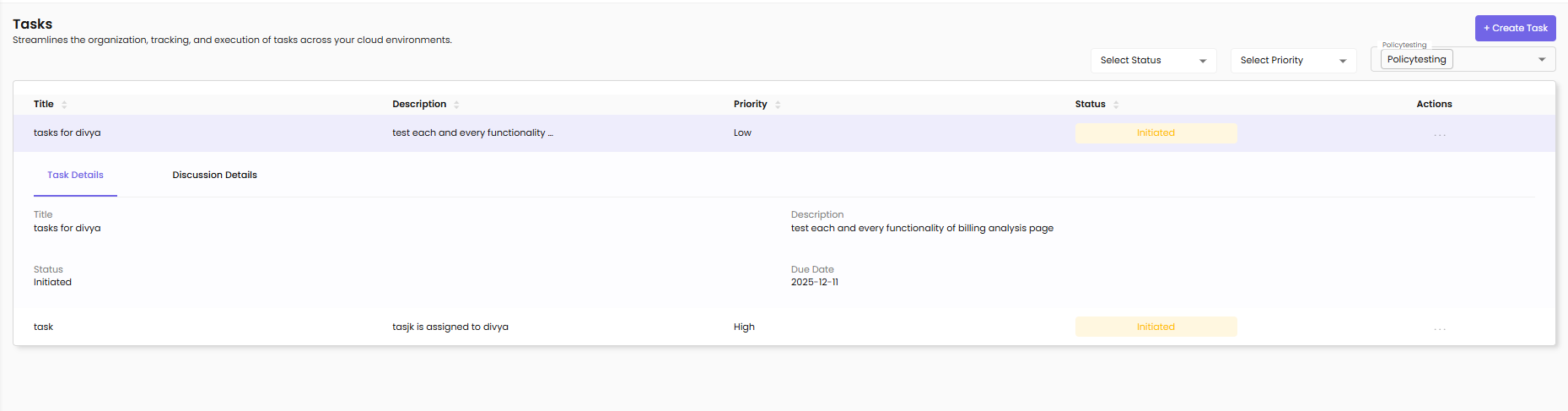
Task List View
The task list displays all tasks with the following details:
- Title – Name/description of the task
- Description – Brief summary of what needs to be done
- Priority – Urgency level (High, Medium, Low)
- Status – Current state (Initiated, In Progress, Completed, Closed)
- Actions – View, Edit, Delete options
Task Filtering
Use filters at the top of the page to find specific tasks:
- Select Status – Filter by task status (Initiated, In Progress, Completed)
- Select Priority – Filter by priority level (High, Medium, Low)
- Project Filter – Filter tasks by associated project
Creating a New Task
To create a new task, click the + Create Task button.
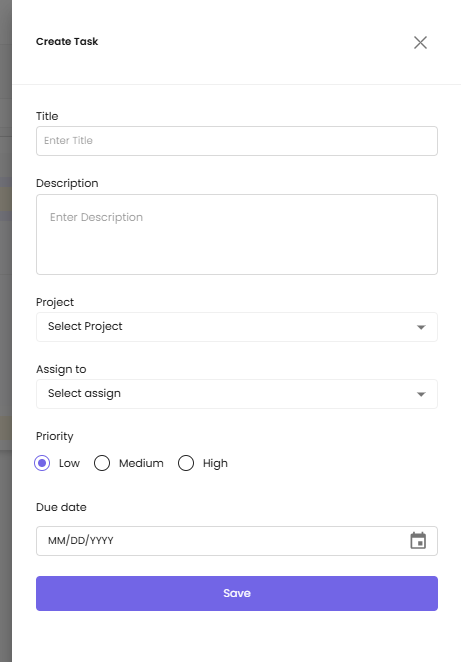
- Title – Enter a clear, concise task name
- Description – Provide detailed task description
- Project – Select the associated project from dropdown
- Assign to – Choose the team member responsible for the task
- Priority – Select urgency level (Low, Medium, High)
- Due date – Set the target completion date (MM/DD/YYYY format)
Click Save to create the task.
Viewing Task Details
Click on a task row to expand and view comprehensive information:
Task Details Tab:
- Title – The task name
- Status – Current task status
- Description – Full task description
- Due Date – Deadline for completion
Discussion Details Tab:
View comments, updates, and collaboration history for the task.
Editing a Task
Click the edit icon or select a task to modify:

- Title – Update the task name
- Description – Modify task details
- Priority – Change priority level (Low, Medium, High)
- Due date – Adjust the deadline
- Update discussion – Add notes about changes or progress
- Status – Update task status (Initiated, In Progress, Completed)
Click Update to save changes or Cancel to discard.
Task Status Workflow
Tasks progress through the following statuses:
- Initiated – Newly created task, not yet started
- In Progress – Task is actively being worked on
- Completed – Task finished and ready for review
- Closed – Task archived after completion
Task Priorities
- High Priority – Urgent tasks requiring immediate attention
- Medium Priority – Important tasks with reasonable deadlines
- Low Priority – Tasks that can be completed when time allows
Task Discussions and Comments
Adding Comments:
- Open the task details panel
- Navigate to the Discussion Details tab
- Type your comments or updates
- Use @mentions to notify specific team members
- Click Post to add the comment
Discussion Features:
- Collaborate with team members through comments
- Track updates and progress notes
- View complete conversation history
- Timestamp for each comment
Task Notifications
Users receive notifications for:
- Task Assignment – When assigned a new task
- Status Changes – When task status is updated
- @Mentions – When mentioned in task comments
- Due Date Reminders – 24 hours before due date
- Overdue Alerts – When tasks pass their due date
- Task Updates – When task details are modified
Notifications are sent via: - In-app notifications (bell icon) - Email notifications (if enabled)