
Landing Page
The landing page is your starting point after you sign in — a workspace launcher that lets you jump into the CloudPi areas you use most. From anywhere in CloudPi, click the logo in the upper-left (or use Workspace Selector → Landing Page) to return to this screen.
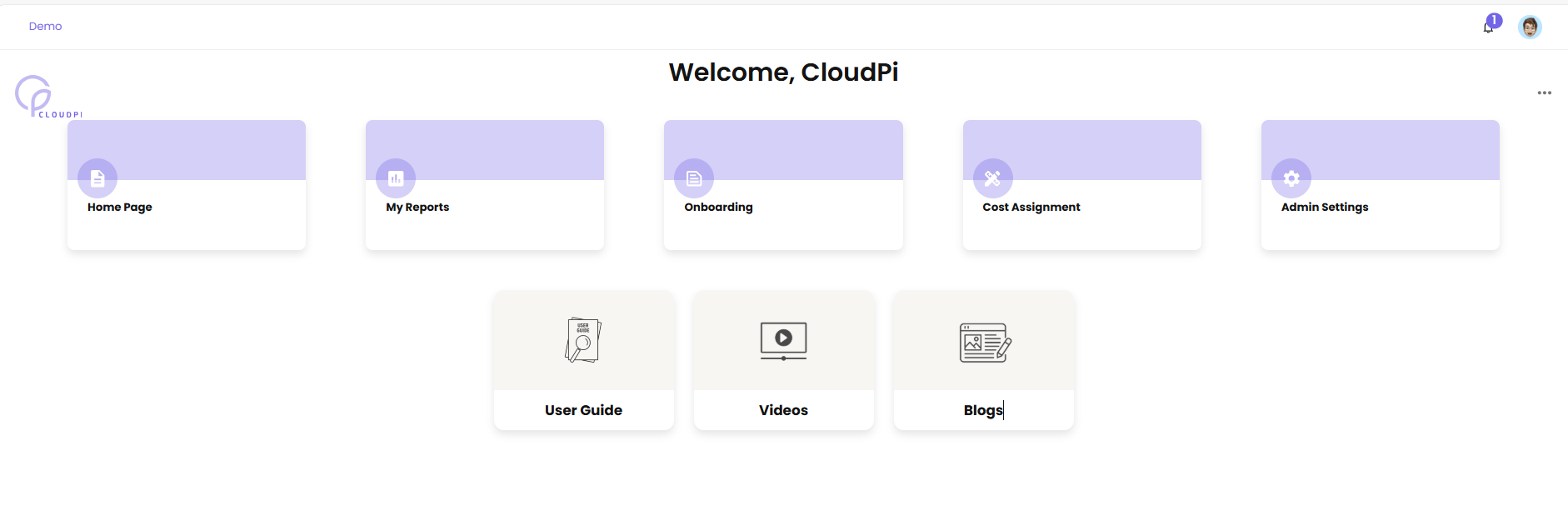
Tiles
The landing page presents tiles that open the corresponding CloudPi area:
| Tile | Opens |
|---|---|
| Home Page | The Workspace Home Page dashboard |
| My Reports | Reporting dashboards and saved views — see Dashboards |
| Onboarding | Cloud onboarding and data-collection setup — see Cloud Onboarding |
| Cost Assignment | Cost allocation rules and project setup — see Cost Assignment |
| Admin Settings | Workspace administration — see Admin Settings |
| User Guide | This documentation |
| Videos / Blogs | Learning resources |
Tiles vary by role
The exact set of tiles you see is determined by your CloudPi role. For example, CloudPi Administrators see only platform tiles (Onboarding, Admin Settings) since they have no access to customer billing data, and Project Administrators do not see Onboarding because they do not manage cloud account connections.
For a full breakdown of what each role sees, including screenshots of the landing page logged in as each role, refer to What Each Role Sees in the RBAC documentation.
Workspace Home Page
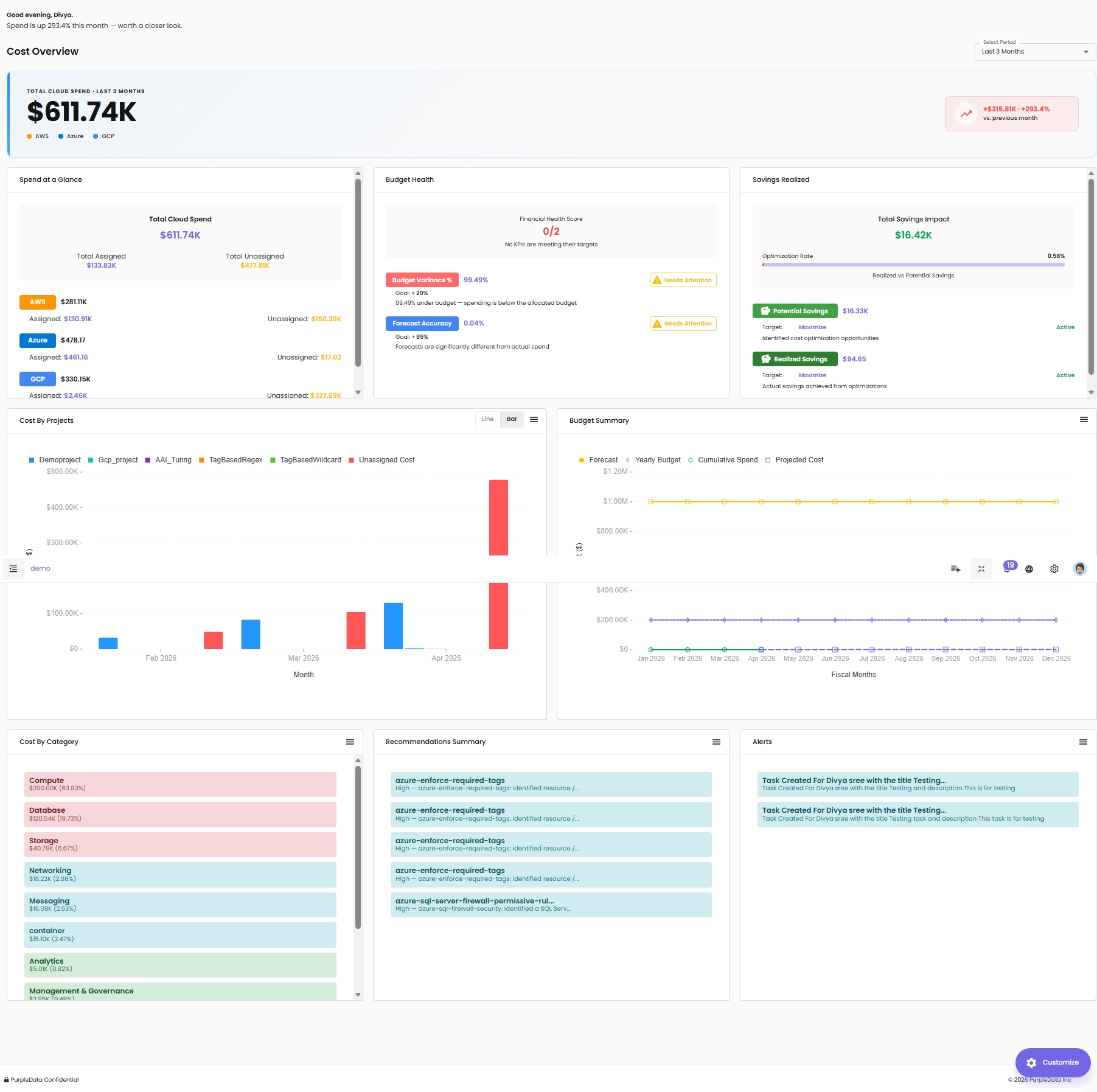
The workspace Home Page provides an executive-style overview of cloud cost, FinOps, and optimization signals. It is designed for quick review and continuous monitoring.
What You Can Do on the Home Page
- Monitor high-level KPIs for spend, variance, and optimization impact
- Change the analysis period using the date filter (for example,
Last 3 Months) - Identify items that need attention (for example, budget variance or forecast accuracy)
- Navigate to deeper dashboards or modules using the left navigation
Home Page Sections
The exact layout may vary by role and configuration, but commonly includes:
Cloud Cost KPIs
Shows a quick snapshot of cloud spend and allocation status: - Total cloud spend - Assigned vs unassigned costs - Provider breakdown (for example, AWS, Azure, GCP)
FinOps KPIs
Summarizes FinOps performance against goals, often including: - Budget variance status - Forecast accuracy status
Optimization KPIs
Highlights optimization performance and impact, often including: - Total savings impact - Optimization rate - Potential savings and realized savings
Trends and Summaries
Common charts and widgets include:
- Cost by Project trend chart
- Budget Summary chart
- Cost by Category breakdown
- Recommendations Summary list to review optimization opportunities
- Health Status indicators (for example, infrastructure health and compliance)
Customizing the Home Page
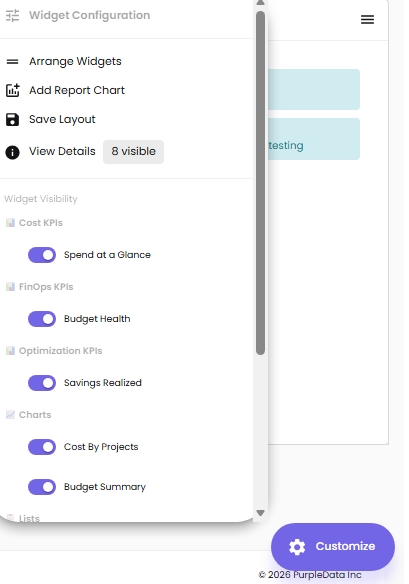
The Home Page is fully customizable per user. Click Customize at the bottom-right corner of the page to open the Widget Configuration panel, where you decide which widgets appear on your Home Page, change their order, and pull charts in from other dashboards.
What you can do from the Widget Configuration panel:
- Arrange Widgets — drag widgets to change their position on the page
- Add Report Chart — pull a chart from a different dashboard so it shows up on your Home Page
- Save Layout — store your customized arrangement so it persists across sessions
- View Details — see how many widgets are currently visible (e.g., 8 visible)
Widget Visibility toggles — turn individual widgets on or off. Toggles are grouped by category:
| Category | Widgets in this group |
|---|---|
| Cost KPIs | Spend at a Glance |
| FinOps KPIs | Budget Health |
| Optimization KPIs | Savings Realized |
| Charts | Cost By Projects, Budget Summary |
| Lists | Cost By Category, Recommendations Summary, Alerts |
| Report Charts | FinOps Metrics Trend |
To revert all customizations, click Reset to Default at the bottom of the panel.
Recommendations and Health Signals
When reviewing recommendations and health widgets:
- Select a recommendation to open details and next steps.
- Use the widget menu (three-line/ellipsis menu) for available actions such as filtering or viewing more detail.