
Service Accounts
Service Accounts in CloudPi enable secure connectivity between CloudPi and your cloud providers (AWS, Azure, GCP). They manage the credentials required for data collection, billing analysis, metrics gathering, and automated remediation actions.
Overview
CloudPi uses a two-tier credential management system:
Master Service Account (MSA) - Domain-level credentials that can be shared across multiple projects within an organization
Project Service Account (PSA) - Project-level credentials that can either use their own dedicated credentials or inherit from an MSA
This architecture provides flexibility in managing cloud credentials while maintaining security and reducing credential sprawl.
Navigating to Service Accounts
- Go to Admin Settings from your CloudPi dashboard
- Expand the Service Accounts dropdown in the left navigation
- Select either Master Accounts or Project Accounts
Master Service Accounts (MSA)
Master Service Accounts are domain-level cloud provider credentials used for data collection across the organization. MSAs provide centralized credential management and can be shared with multiple Project Service Accounts.
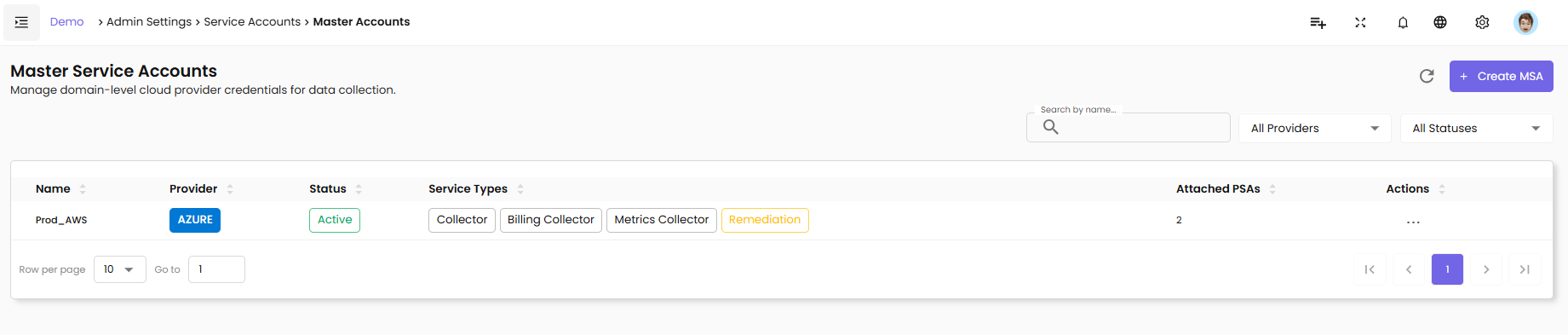
MSA Overview Page
The Master Service Accounts page displays all configured MSAs with the following information:
Name - Unique identifier for the MSA (e.g., Prod_AWS)
Provider - Cloud provider badge (AWS, AZURE, GCP)
Status - Current status of the MSA (Active or Inactive)
Service Types - The types of services this MSA is configured for: - Collector - Standard data collection - Billing - Billing and invoice data collection - Metrics - Performance and metrics collection - Remediation - Write operations for automated actions
Attached PSAs - Number of Project Service Accounts using this MSA's credentials
Actions - Edit and Delete operations
Filtering MSAs
Use the filters at the top of the page to find specific MSAs:
Search by name - Enter MSA name to search
All Providers - Filter by cloud provider (AWS, Azure, GCP)
All Statuses - Filter by status (Active, Inactive)
Creating a Master Service Account
Click the + Create MSA button to open the Create Master Service Account wizard.
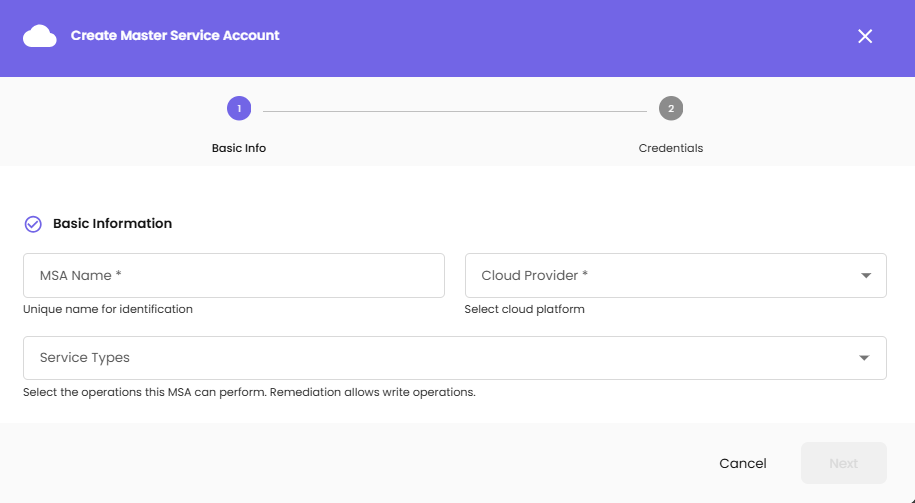
Step 1: Basic Info
Basic Information:
MSA Name - Enter a unique name for identification (e.g., Prod_AWS, Dev_Azure)
Cloud Provider - Select the cloud platform (AWS, Azure, or GCP). Cannot be changed after creation.
Service Types - Select the operations this MSA can perform. Remediation allows write operations. - Collector - Billing - Metrics - Remediation
Click Next to proceed to credentials.
Step 2: Credentials
Provide the cloud provider credentials based on the selected provider:
For AWS: - Access Key ID - Secret Access Key - Region - Role ARN (for cross-account access) - External ID (optional)
For Azure: - Tenant ID - Client ID - Client Secret - Subscription ID
For GCP: - Service Account JSON file upload - Project ID
Click Create MSA to complete the setup.
Managing MSAs
Edit MSA - Click the Edit icon to modify MSA settings
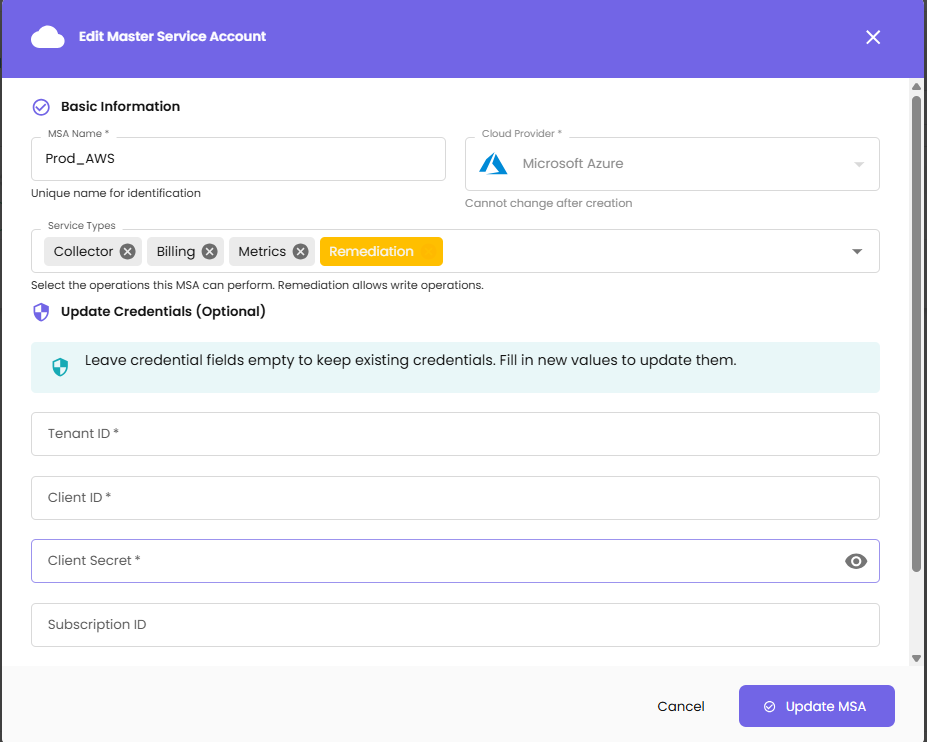
The Edit Master Service Account dialog allows you to modify:
Basic Information: - MSA Name - Update the unique identifier - Cloud Provider - Displayed but cannot be changed after creation - Service Types - Add or remove service types (Collector, Billing, Remediation shown as tags)
Update Credentials (Optional): - Leave credential fields empty to keep existing credentials - Fill in new values to update them - For Azure: Tenant ID, Client ID, Client Secret, Subscription ID
Click Update MSA to save changes.
Delete MSA - Click the Delete icon to remove an MSA
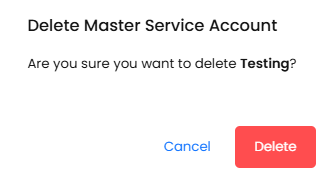
A confirmation dialog will appear asking "Are you sure you want to delete [MSA Name]?"
- Click Delete to confirm removal
- Click Cancel to keep the MSA
Note: If PSAs are attached to this MSA, they will become orphaned after deletion.
Project Service Accounts (PSA)
Project Service Accounts are project-level credentials that enable cloud connectivity for specific projects. PSAs can either maintain their own credentials or inherit them from a Master Service Account.
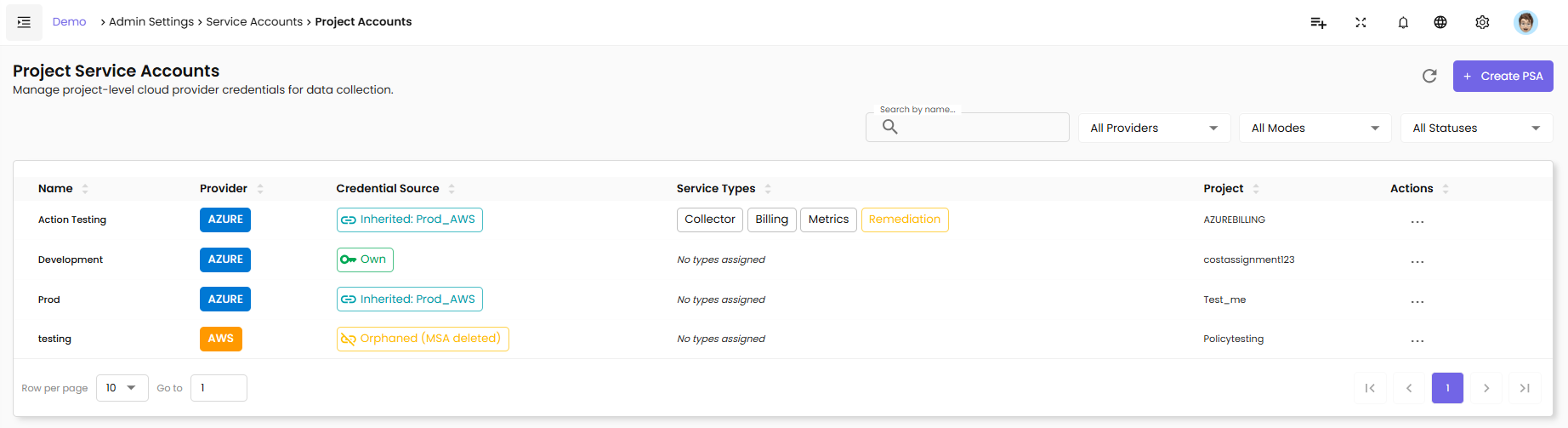
PSA Overview Page
The Project Service Accounts page displays all configured PSAs with:
Name - PSA identifier (e.g., Action Testing, Development, Prod)
Provider - Cloud provider badge (AWS, AZURE, GCP)
Credential Source - How the PSA authenticates: - Own (yellow badge) - Uses dedicated credentials - Inherited: [MSA_Name] (green badge) - Uses credentials from linked MSA - Orphaned (MSA deleted) (red badge) - Previously inherited but MSA was deleted
Service Types - Configured service types (Collector, Billing, Metrics, Remediation)
Project - The CloudPi project this PSA belongs to
Actions - Edit and Delete operations
Filtering PSAs
Search by name - Enter PSA name to search
All Providers - Filter by cloud provider
All Modes - Filter by credential mode (Own, Inherited, Orphaned)
All Statuses - Filter by status
Creating a Project Service Account
Click the + Create PSA button to open the Create Project Service Account wizard.
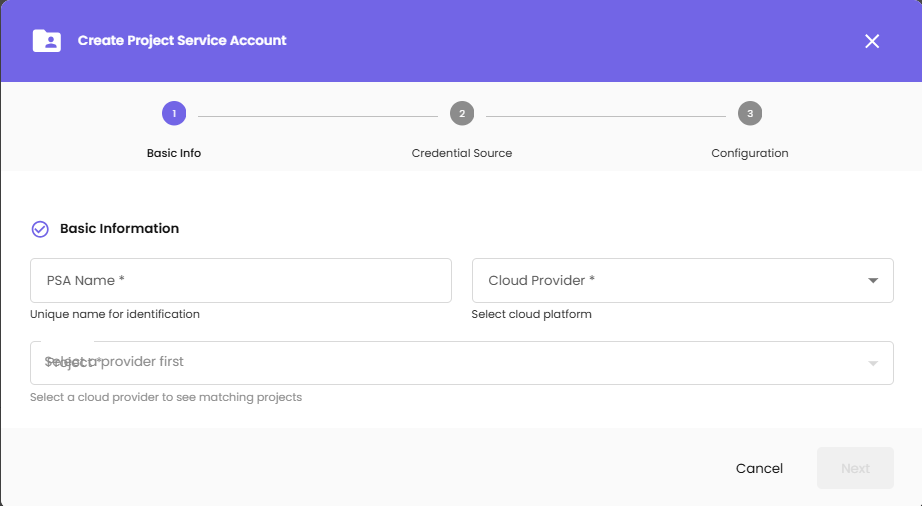
Step 1: Basic Info
Basic Information:
PSA Name - Enter a unique name for identification
Cloud Provider - Select the cloud platform (AWS, Azure, GCP). Cannot be changed after creation.
Project - Select a cloud provider to see matching projects. Cannot be changed after creation.
Click Next to proceed to credential source.
Step 2: Credential Source
Choose how this PSA will authenticate:
Own Credentials - This PSA will have its own dedicated credentials for authentication - Requires providing full credential details in the next step - Credentials stored separately for this PSA
Inherit from MSA - Use credentials from an existing Master Service Account - Select an MSA from the dropdown to inherit credentials from - PSA uses the linked MSA's credentials - Credential mode cannot be changed after creation
Select Master Service Account - If inheriting, choose which MSA to inherit from (e.g., Prod_AWS)
Service Types - Select the purposes for this PSA's credentials: - Collector - Billing - Metrics - Remediation
Click Next to proceed to configuration.
Step 3: Configuration
If using own credentials, provide the cloud provider credentials. If inheriting from MSA, review the configuration summary.
Click Create PSA to complete the setup.
Managing PSAs
Edit PSA - Click the Edit icon to modify PSA settings
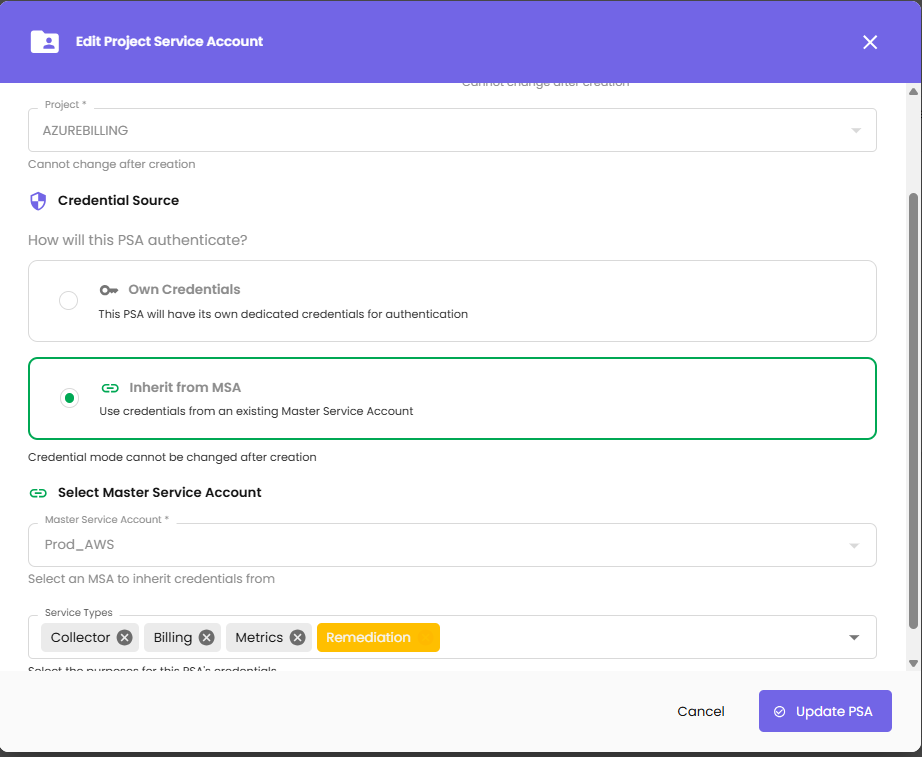
The Edit Project Service Account dialog shows:
Basic Information: - PSA Name - Displayed but may be editable - Cloud Provider - Displayed but cannot be changed after creation - Project - Displayed but cannot be changed after creation (e.g., AZUREBILLING)
Credential Source:
How will this PSA authenticate?
- Own Credentials - This PSA will have its own dedicated credentials for authentication
- Inherit from MSA - Use credentials from an existing Master Service Account (highlighted when selected)
Note: Credential mode cannot be changed after creation.
Select Master Service Account - Choose an MSA to inherit credentials from (e.g., Prod_AWS)
Service Types - Update service types as needed (Collector, Billing, Metrics, Remediation shown as tags)
Click Update PSA to save changes.
Delete PSA - Click the Delete icon to remove a PSA from the project. A confirmation dialog will appear before deletion.
Credential Mode States
Own - PSA has dedicated credentials stored in CloudPi
Inherited - PSA uses credentials from a linked Master Service Account. The MSA name is displayed (e.g., "Inherited: Prod_AWS")
Orphaned - Previously inherited credentials but the linked MSA was deleted. Displays as "Orphaned (MSA deleted)" in red. Action required to either: - Provide own credentials - Link to a different MSA