
Policy Management YAML Sync
Manage CloudPi policy configurations through YAML files stored in cloud storage. Sync policies from cloud storage and download policy YAML files for review.
Who Is This For?
This guide is for users who need to:
- Workspace Admins - Configure cloud storage integration and manage workspace-wide policy sync settings
- Project Admins - Sync and download policy YAML files for their projects
- Project Users - View sync status and understand validation errors
Required Permissions
| Role | Capabilities |
|---|---|
| Workspace Admin | Configure cloud integration, manage workspace policies |
| Project Admin | Sync policies, download YAML, view errors |
| Project User | View sync status, view validation errors |
Before You Begin
Before using Policy Management YAML Sync, ensure:
- [ ] Cloud storage is ready - You have an AWS S3 bucket, Azure Blob container, or GCP Cloud Storage bucket created
- [ ] Credentials are available - You have access keys, connection strings, or service account JSON for your cloud provider
- [ ] Appropriate permissions granted - Your cloud credentials have read/write access to the storage location
- [ ] Policies exist - At least one policy is attached to your project
Cloud Provider Requirements
| Provider | Required Credentials | Optional |
|---|---|---|
| AWS S3 | Access Key ID, Secret Access Key, Region, Bucket Name | Folder Path, Role ARN (cross-account) |
| Azure Blob | Tenant ID, Client ID, Client Secret, Storage Account, Container | Folder Path |
| GCP Storage | Service Account JSON, Bucket Name | Folder Path |
Feature Overview
Policy Management YAML Sync enables you to manage CloudPi policies as code. Each project has one YAML file containing all its workflows, rules, and actions. You can:
- Sync policies from cloud - Import policy configurations from cloud storage
- Download policies - Get a local copy of your policy YAML file for review
+-------------------+                      +-------------------+
|     CloudPi       |  <---- Sync ---->    |   Cloud Storage   |
|     Database      |                      |   (YAML Files)    |
+-------------------+                      +-------------------+
         |                                          |
         |  - Workflows                             |  - One file per project
         |  - Rules                                 |  - Version control
         |  - Actions                               |  - External editing
         +------------------------------------------+
Key Capabilities
- Cloud-to-Database Sync - Import YAML policy files from cloud storage into CloudPi
- 7-Layer Validation - Comprehensive validation before any sync operation
- Multi-Cloud Support - Works with AWS S3, Azure Blob Storage, and GCP Cloud Storage
- Download Policies - Download policy YAML files for local review or backup
Step-by-Step Guides
Configure Cloud Storage Integration
Set up the connection between CloudPi and your cloud storage provider.
Goal: Enable YAML sync for your workspace by configuring cloud storage credentials.
Steps
-
Navigate to Admin Settings > Integration
-
Locate the Policy Management card
-
Click Configure
-
Select your cloud provider (AWS, Azure, or GCP)
-
Enter your credentials:
For AWS S3: Access Key ID, Secret Access Key, Region, Bucket Name, Folder Path (optional)
For Azure Blob: Tenant ID, Client ID, Client Secret, Storage Account Name, Container Name, Folder Path (optional)
For GCP Storage: Upload Service Account JSON file OR paste manually, Bucket Name, Folder Path (optional)
-
Click Test Connection to verify access
-
Click Save to complete configuration
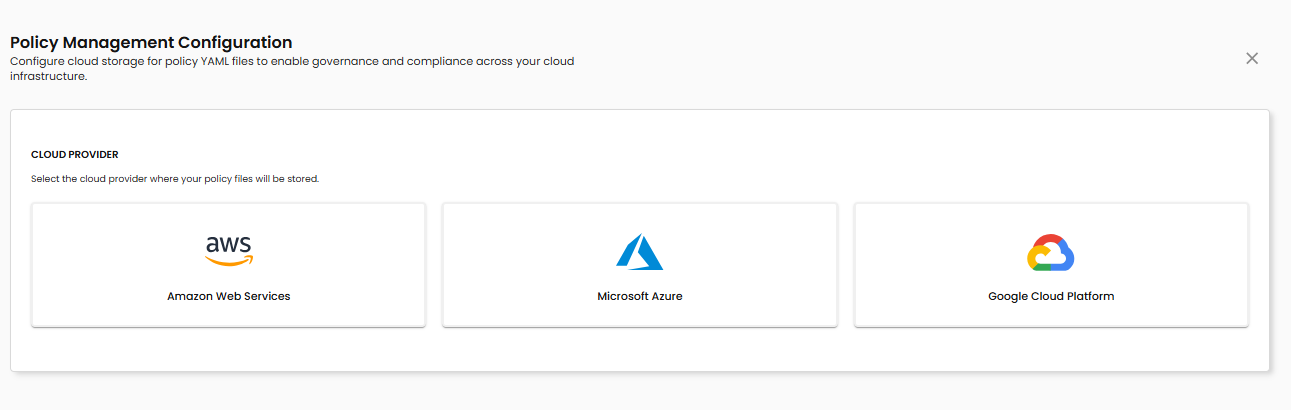
Expected Outcome: A green checkmark appears with "Policy Management is connected and active."
Sync Policies from Cloud to Database
Import policy changes from your YAML files in cloud storage.
Goal: Apply external YAML changes to CloudPi's database.
Steps
-
Navigate to Automation > Policy and Workflow
-
Click the Sync button in the toolbar
-
Click Sync policies from cloud storage
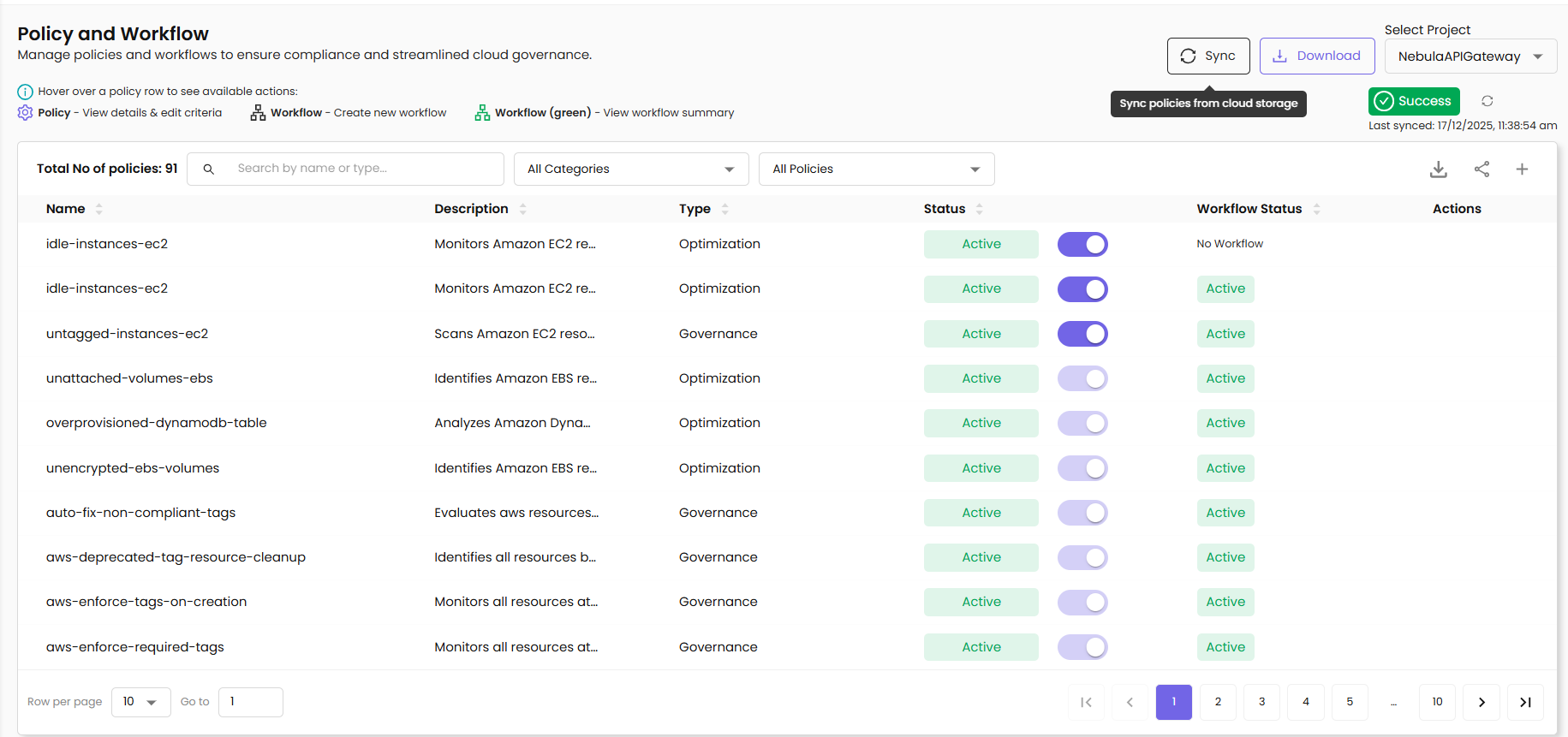
Expected Outcome: The sync status updates to show "Last synced: [timestamp]" with a green checkmark. Database workflows, rules, and actions reflect the YAML file contents.
Validation Required
If the YAML file contains validation errors, the sync will fail. Review the error details and fix the YAML file before retrying.
What Happens During Sync
- CloudPi downloads the highest-version YAML file from cloud storage
- The 7-layer validation pipeline checks the file
- Workflows are created or updated in the database
- Rules are synchronized (created/updated/deleted)
- Actions are linked to rules
- If new rules were created, the YAML is auto-updated with assigned IDs
Download Policy YAML File
Download the current YAML file for local review or sharing.
Goal: Get a local copy of your policy configuration.
Steps
-
Navigate to Automation > Policy and Workflow
-
Click the Download button
-
The browser downloads the YAML file
Expected Outcome: A file named project_{id}_{name}.yaml is downloaded to your local machine.
View Sync Status
Monitor the current state of policy synchronization.
Goal: Understand whether policies are up-to-date.
Status Indicators
| Icon | Status | Meaning |
|---|---|---|
| Green checkmark | Success | Policies synced successfully |
| Orange warning | Partial Success | Sync completed with warnings |
| Red error | Failed | Sync failed due to validation errors |
View Error Details
-
Click View Details on an error or warning status
-
The error modal displays: Error category, Specific field with issue, Human-readable error message, Suggested fix
Behavior Reference
YAML File Structure
Each project has one YAML file with all its policies:
metadata:
  project_id: 123
  project_name: "production-aws"
  workspace_id: 1
  version: 3
  timestamp: "2025-01-15T10:30:00Z"

workflows:
  - workflow_id: 456
    name: "idle-ec2-policy"
    description: "Monitor idle EC2 instances"
    status: "APRV"
    policy_json:
      name: "idle-instances-ec2"
      provider: "aws"
      service_name: "ec2"
      classification: "optimization"
      filter:
        and:
          - field: "cpu_utilization_avg"
            operator: "lessThan"
            value: 5
    rules:
      - rule_id: 789
        rule_json:
          event:
            params:
              action:
                - actionId: 1
                  ordernum: 1
                  instance_values:
                    emailId: "team@company.com"
Sync Status States
| State | Database Field | Description | User Action |
|---|---|---|---|
| SUCCESS | policy_sync_msg.status = 'success' |
Sync completed without issues | None required |
| PARTIAL_SUCCESS | policy_sync_msg.status = 'partial_success' |
Sync completed with warnings | Review warnings |
| FAILED | policy_sync_msg.status = 'failed' |
Sync blocked by validation errors | Fix errors and retry |
| UNKNOWN | policy_sync_msg = null |
No sync has occurred | Configure integration |
Version Management
- YAML files use versioned naming:
project_123_name_v1.yaml,v2,v3... - Cloud-to-database sync reads the highest version number
Troubleshooting & FAQs
Sync Fails with Validation Errors
Problem: The sync button shows red error status.
Solution:
- Click View Details to see specific errors
- Common issues: Invalid YAML syntax (check indentation), Missing required fields (
name,provider,filter), Invalid action references (actionId doesn't exist) - Fix the errors in your YAML file
- Upload the corrected file to cloud storage
- Retry the sync
"Policy Management not configured" Message
Problem: Sync operations are unavailable.
Solution:
- Navigate to Admin Settings > Integration
- Configure Policy Management with your cloud credentials
- Test the connection before saving
Credentials Test Fails
Problem: "Test Connection" returns an error.
Common Causes:
| Error | Cause | Fix |
|---|---|---|
| Access Denied | Insufficient permissions | Grant read/write access to bucket/container |
| Bucket Not Found | Wrong bucket name or region | Verify bucket name and region |
| Authentication Failed | Invalid credentials | Regenerate access keys or service account |
| Network Error | Firewall blocking | Allow outbound HTTPS to cloud provider |
YAML File Not Found
Problem: Cloud-to-database sync reports no file.
Solution:
- Verify the file exists in the correct bucket/container
- Check the folder path configuration matches the file location
- Ensure the file follows the naming pattern:
project_{id}_*.yaml
Rules Not Appearing After Sync
Problem: Database shows fewer rules than the YAML file.
Possible Causes:
- Rules failed validation and were skipped
- Check the sync status for warnings
- Review the YAML for duplicate rule_id values
- Ensure each action has a valid actionId
How do I revert to a previous version?
Download the desired version from cloud storage, then sync from cloud to database. The system always reads the highest version, so you may need to delete newer versions or rename files.
Can multiple users sync simultaneously?
Yes, but the last sync wins. CloudPi does not lock during sync operations. Coordinate with your team to avoid conflicting changes.
What happens if sync fails mid-operation?
The database transaction rolls back. No partial changes are applied. The original state is preserved.
How do I delete a policy?
Remove the workflow block from the YAML file and sync. The system identifies workflows in the database but not in the YAML and reports them in the comparison report. Note: CloudPi does not auto-delete to prevent accidental data loss.
Release & Security Notes
Audit Logging
All sync operations are logged with: User who initiated the sync, Timestamp, Sync direction, Success/failure status, Validation errors (if any).
Access audit logs through Admin Settings > Activity Log.
Credential Security
- Cloud credentials are encrypted at rest
- Credentials are never logged or exposed in error messages
- Use service accounts with minimal required permissions
Ownership Validation
- Users can only sync policies for projects they have access to
- Workspace admins can manage all workspace policies
- Cross-tenant access is prevented by design
Validation Guarantees
The 7-layer validation pipeline ensures:
- Invalid YAML syntax is rejected before database changes
- Malformed policies cannot corrupt the database
- Missing references (invalid actionId) are caught
- SQL injection in filter parameters is blocked
Glossary
| Term | Definition |
|---|---|
| Policy | A set of conditions that CloudPi monitors, such as idle resources or cost thresholds |
| Workflow | Automated actions triggered when policy conditions are met |
| Rule | A specific condition within a workflow, including service scope and actions |
| YAML Sync | Synchronization from cloud-stored YAML files to CloudPi database |
| Validation Pipeline | 7-layer check that ensures YAML files are valid before sync |
Related Documentation
- Automations - Policy and workflow management overview
- Workspace Settings - User and integration management
- Integrations - Cloud provider integration setup