
Cloud Onboarding
Cloud Onboarding in CloudPi allows you to connect your cloud provider accounts (AWS, Azure, GCP) to enable data collection, billing analysis, metrics gathering, and automated remediation actions.
Overview
The onboarding process follows a guided 4-step wizard:
- Onboarding Cloud - Select account type and access configuration
- Configuration - Configure features and billing settings
- Credentials - Provide cloud provider credentials
- Data Collection - Configure data collection settings
AWS Cloud Onboarding
Connect your AWS organization to CloudPi for comprehensive cloud management and cost optimization.
Prerequisites
- AWS Billing Access – Permission to create IAM roles and manage CUR exports
- CUR Configuration – Cost and Usage Report enabled with resource IDs (Parquet recommended)
- Cost Allocation Tags – Tags activated in AWS for cost categorization
For detailed setup, see Provider Connections - AWS.
Step 1: Account Type
Onboard AWS Cloud
Get started by selecting your AWS account type and access configuration. Provide your organization name to proceed.
Organization Name - Provide the name of the organization
Account Type - Select the type of account for onboarding: - Organization Account - Manage multiple AWS accounts centrally under a single organization - Management Account - Manage AWS services independently within a standalone account
Access Type - Select the access type that matches your use case: - Cross Account - Enable access across multiple AWS accounts via a central account - Standard Account - Manage resources within a single AWS account
Click Next to proceed.
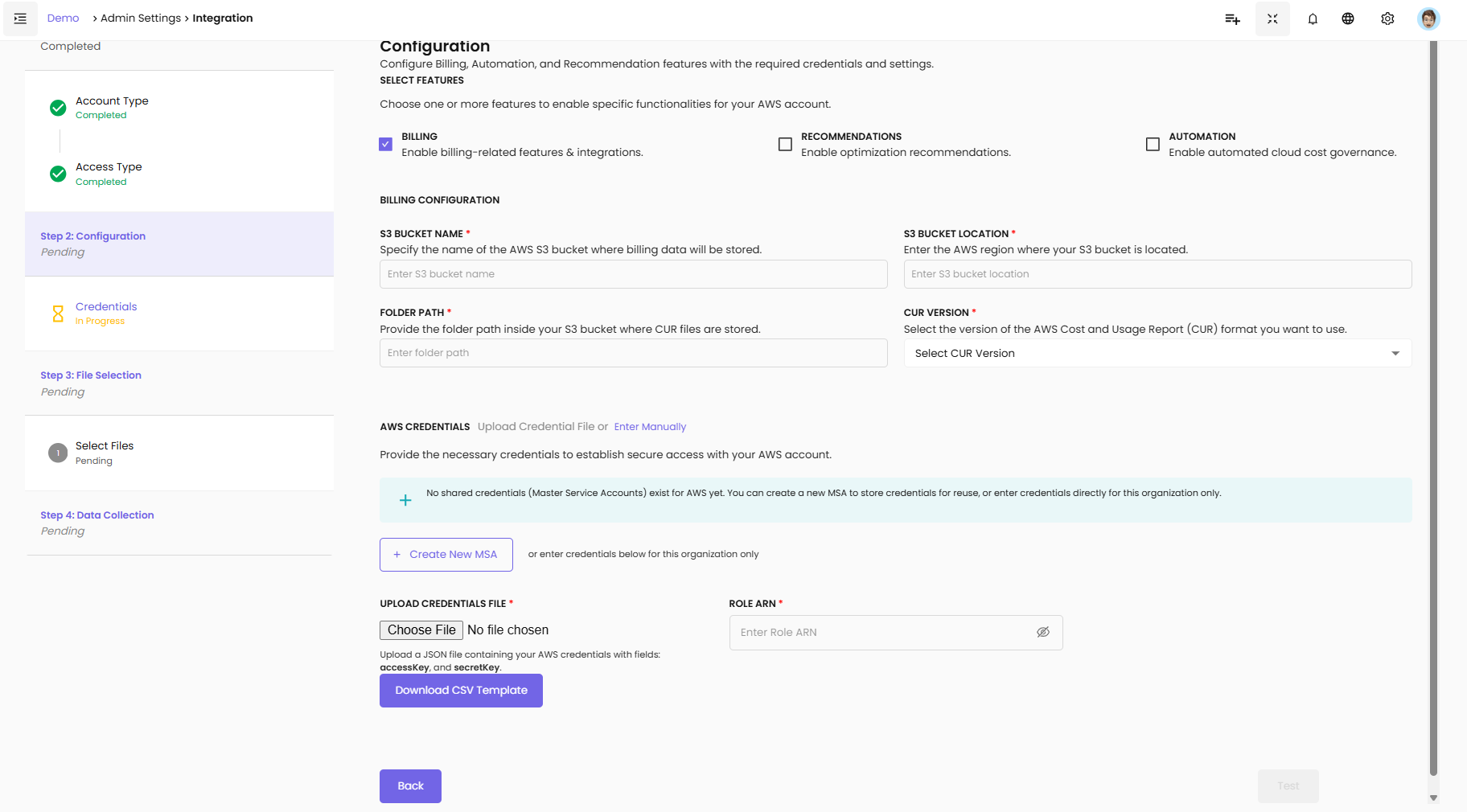
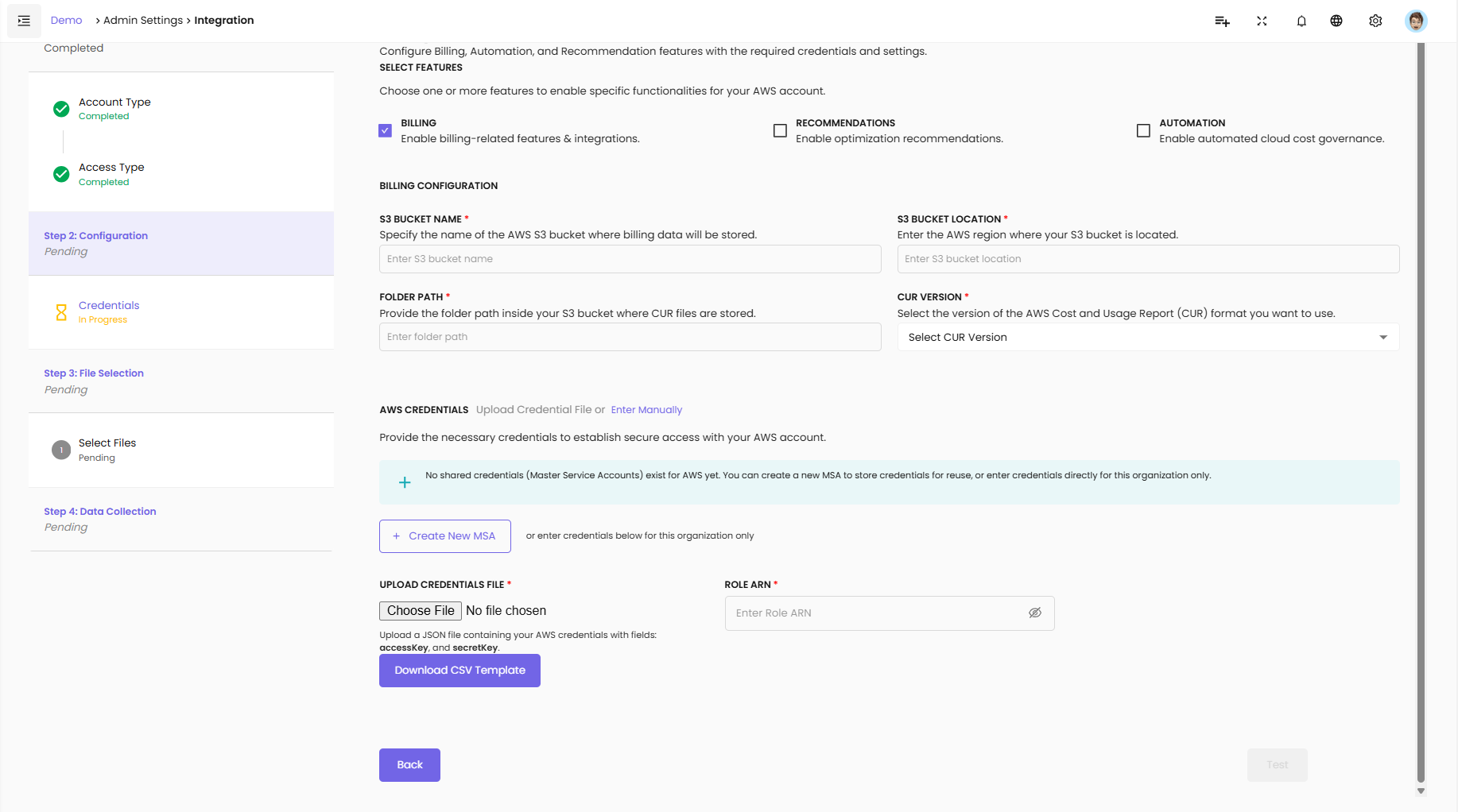
Step 2: Configuration
Configuration
Configure Billing, Automation, and Recommendation features with the required credentials and settings.
Select Features:
Choose one or more features to enable specific functionalities for your AWS account:
Billing - Enable billing-related features & integrations
Recommendations - Enable optimization recommendations
Automation - Enable automated cloud cost governance
Billing Configuration:
S3 Bucket Name - Specify the name of the AWS S3 bucket where billing data will be stored
S3 Bucket Location - Enter the AWS region where your S3 bucket is located
Folder Path - Provide the folder path inside your S3 bucket where CUR files are stored
CUR Version - Select the version of the AWS Cost and Usage Report (CUR) format you want to use
AWS Credentials:
Provide the necessary credentials to establish secure access with your AWS account.
- No shared credentials (Master Service Accounts) exist for AWS yet. You can create a new MSA to store credentials for reuse, or enter credentials directly for this organization only.
Create New MSA - Create a new Master Service Account to store credentials for reuse
or enter credentials below for this organization only
Upload Credentials File - Upload a JSON file containing your AWS credentials with fields: accessKey and secretKey
Download CSV Template - Download template for credential file
Role ARN - Enter the Role ARN for cross-account access
Click Next to proceed.
Step 3: File Selection
Select Files
Select the billing data files to import and process.
Click Next to proceed to data collection.
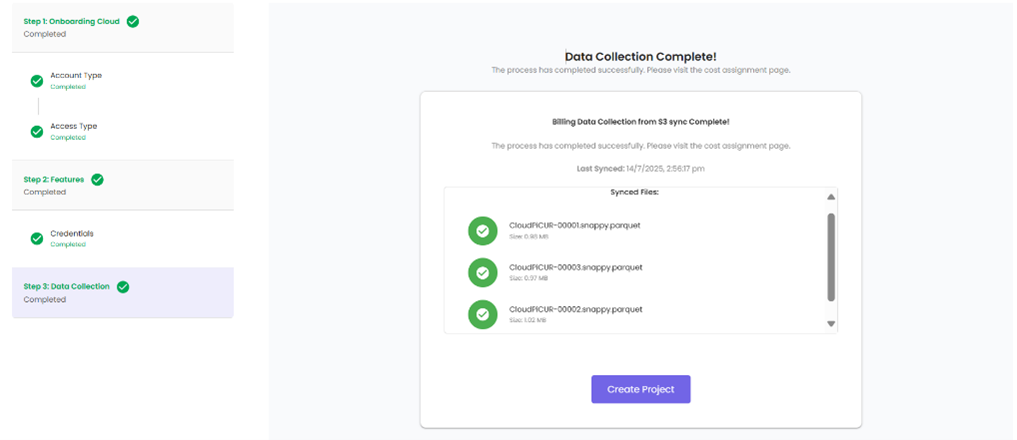
Step 4: Data Collection
Data Collection
Configure data collection settings and initiate the import process.
AWS IAM Requirements
To complete AWS onboarding, you need to create an IAM role or user with the following:
For Cross-Account Access: - Create an IAM role with trust policy allowing CloudPi to assume the role - Provide Role ARN - Use external ID for secure cross-account access
For Standard Account: - Create IAM user with programmatic access - Generate access key and secret key - Store credentials in JSON format
Permissions - Based on enabled features: - Cost Explorer and CUR access for Billing - ReadOnlyAccess for Recommendations - Write permissions for Automation
Azure Cloud Onboarding
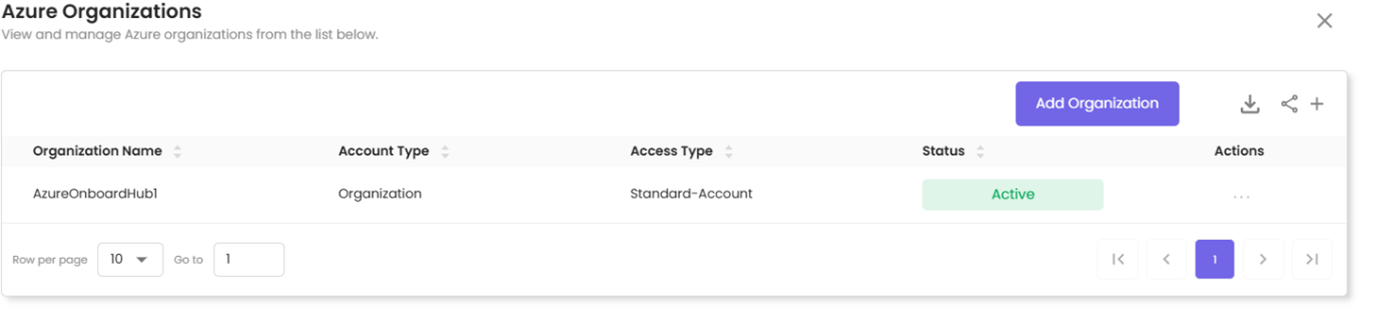
Connect your Azure subscriptions to CloudPi for unified cloud management across your Azure environment.
Prerequisites
- Azure Billing Access – Permission to create app registrations and service principals
- Cost Management Exports – Ability to create or manage exports and storage access
- Billing Account Type – Identify your billing type (CSP, EA, MCA, or standard)
For detailed setup, see Provider Connections - Azure.
Step 1: Account Type
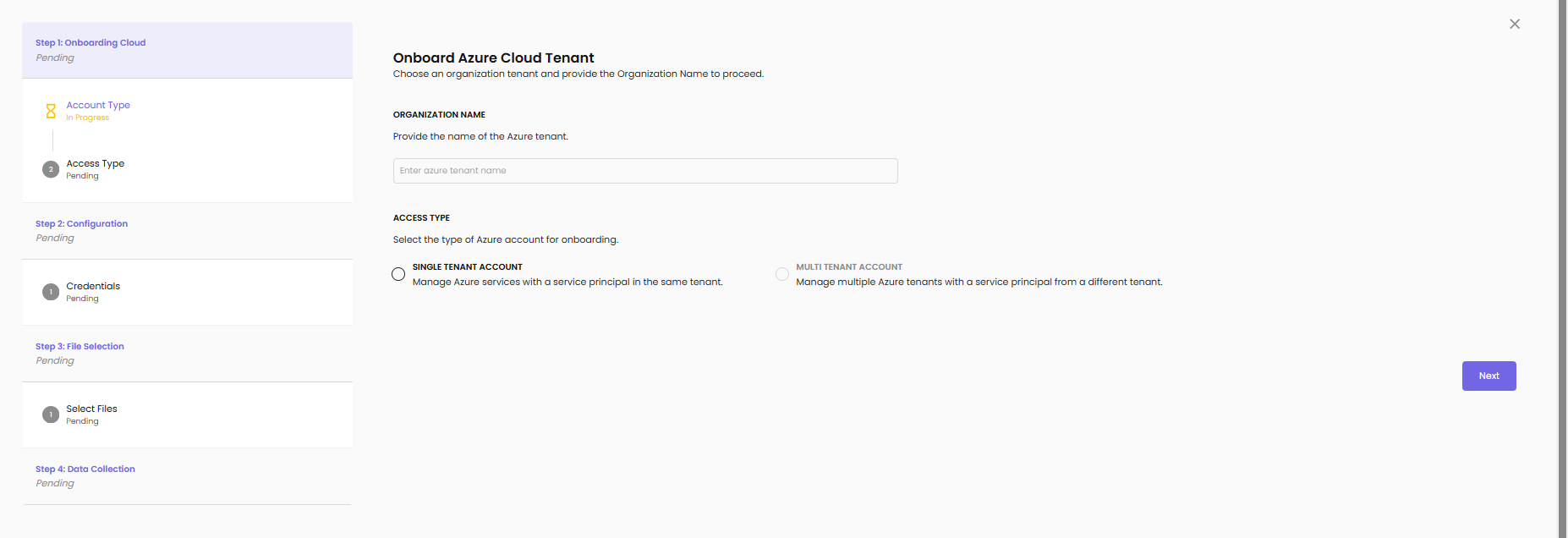
Onboard Azure Cloud Tenant
Choose an organization tenant and provide the Organization Name to proceed.
Organization Name - Provide the name of the Azure tenant
Access Type - Select the type of Azure account for onboarding: - Single Tenant Account - Manage Azure services with a service principal in the same tenant - Multi Tenant Account - Manage multiple Azure tenants with a service principal from a different tenant
Click Next to proceed.
Step 2: Configuration
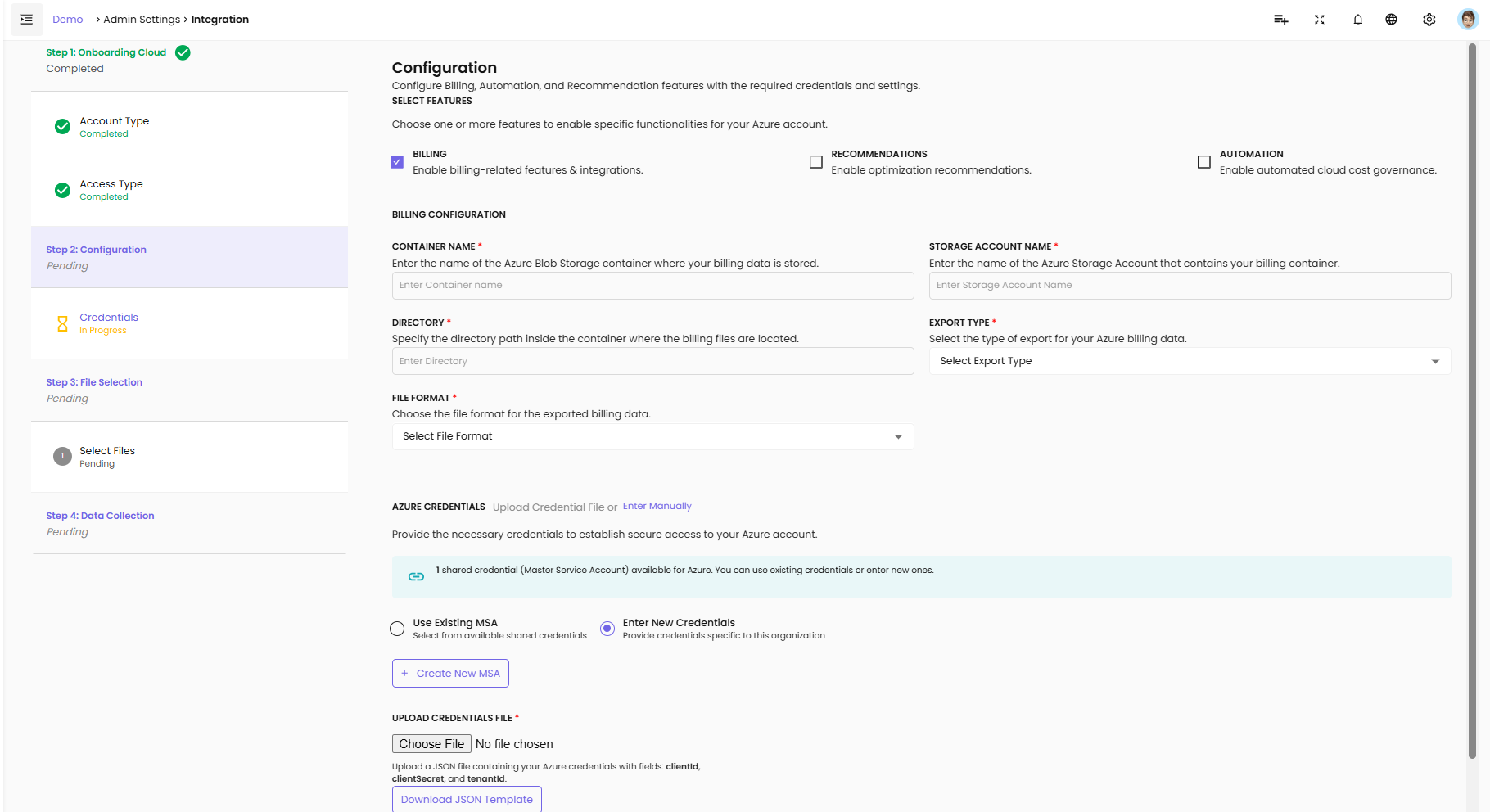
Configuration
Configure Billing, Automation, and Recommendation features with the required credentials and settings.
Select Features:
Choose one or more features to enable specific functionalities for your Azure account:
Billing - Enable billing-related features & integrations
Recommendations - Enable optimization recommendations
Automation - Enable automated cloud cost governance
Billing Configuration:
Container Name - Enter the name of the Azure Blob Storage container where your billing data is stored
Storage Account Name - Enter the name of the Azure Storage Account that contains your billing container
Directory - Specify the directory path inside the container where the billing files are located
Export Type - Select the type of export for your Azure billing data
File Format - Choose the file format for the exported billing data
Azure Credentials:
Provide the necessary credentials to establish secure access with your Azure account.
- 1 shared credential (Master Service Account) available for Azure. You can use existing credentials or enter new ones.
Use Existing MSA - Select from available shared credentials
Enter New Credentials - Provide credentials specific to this organization
Create New MSA - Create a new Master Service Account
Upload Credentials File - Upload a JSON file containing your Azure credentials with fields: clientId, clientSecret, and tenantId
Download JSON Template - Download template for credential file
Click Next to proceed.
Step 3: File Selection
Select Files
Select the billing data files to import and process.
Click Next to proceed to data collection.
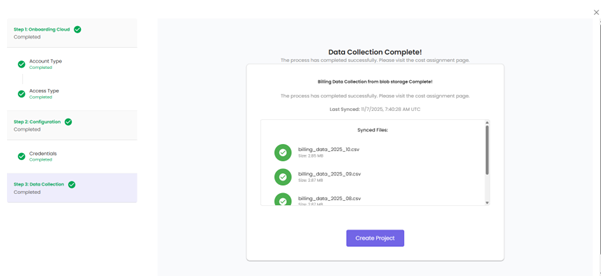
Step 4: Data Collection
Data Collection
Configure data collection settings and initiate the import process.
Azure App Registration Requirements
To complete Azure onboarding, you need to register an application in Azure AD:
App Registration - Create a new app registration in Azure Active Directory
For Single Tenant: - Register app in the same Azure AD tenant - Generate client ID and client secret - Note the tenant ID
For Multi Tenant: - Register app in a different Azure AD tenant - Configure multi-tenant support - Grant appropriate permissions
API Permissions - Grant the following permissions based on enabled features: - Reader role for Recommendations - Cost Management Reader for Billing - Contributor or custom role for Automation
Client Secret - Generate a client secret for authentication
GCP Cloud Onboarding
Connect your Google Cloud Platform projects to CloudPi for comprehensive GCP management.

Prerequisites
- BigQuery Billing Export – Billing export enabled to a BigQuery dataset
- IAM Permissions – Ability to create service accounts, assign IAM roles, and grant BigQuery access
- GCP Service Account – Service account with required roles and credentials.json key file
For detailed setup, see Provider Connections - GCP.
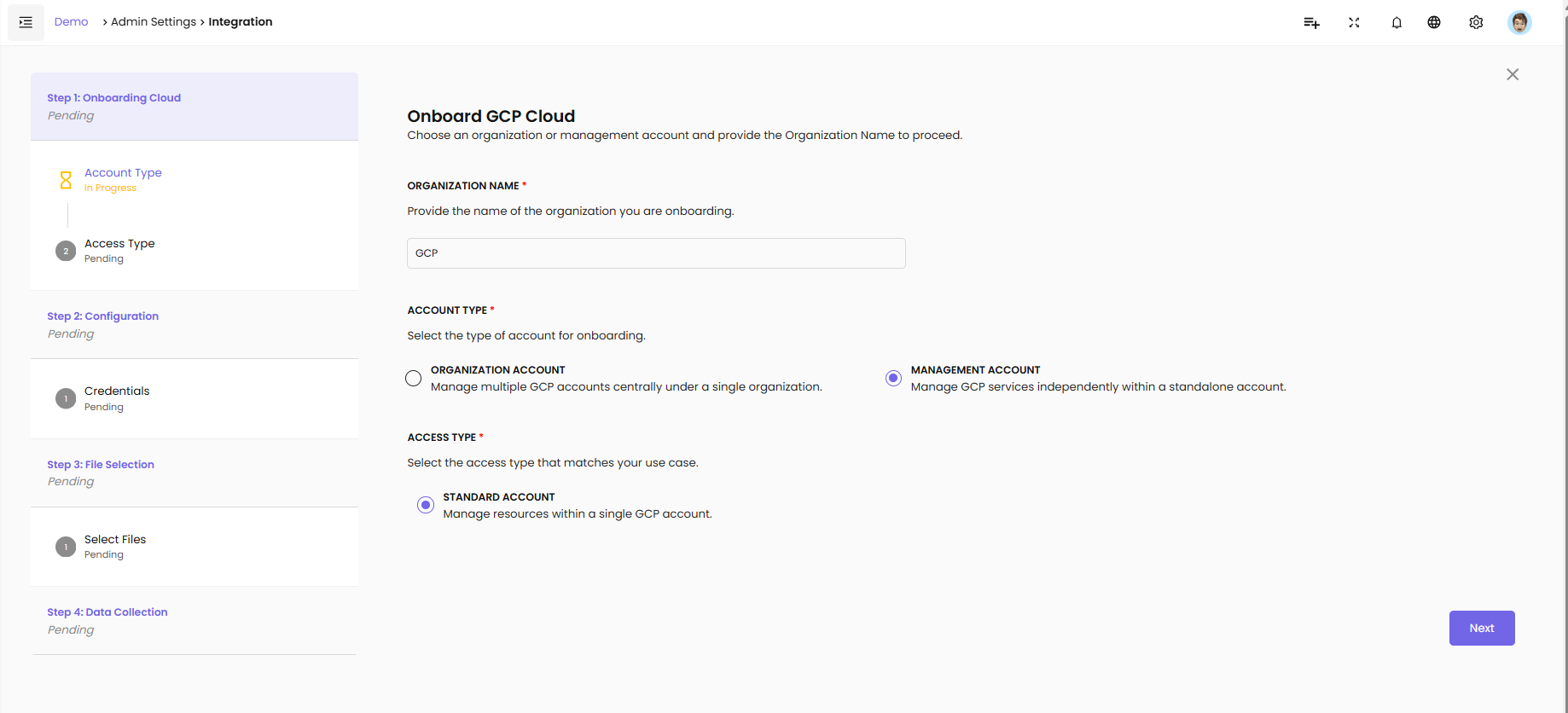
Step 1: Onboarding Cloud
Onboard GCP Cloud
Get started by selecting your GCP account and access configuration. Provide your organization name to proceed.
Organization Name - Provide the name of the organization
Click Next to proceed.

Step 2: Configuration
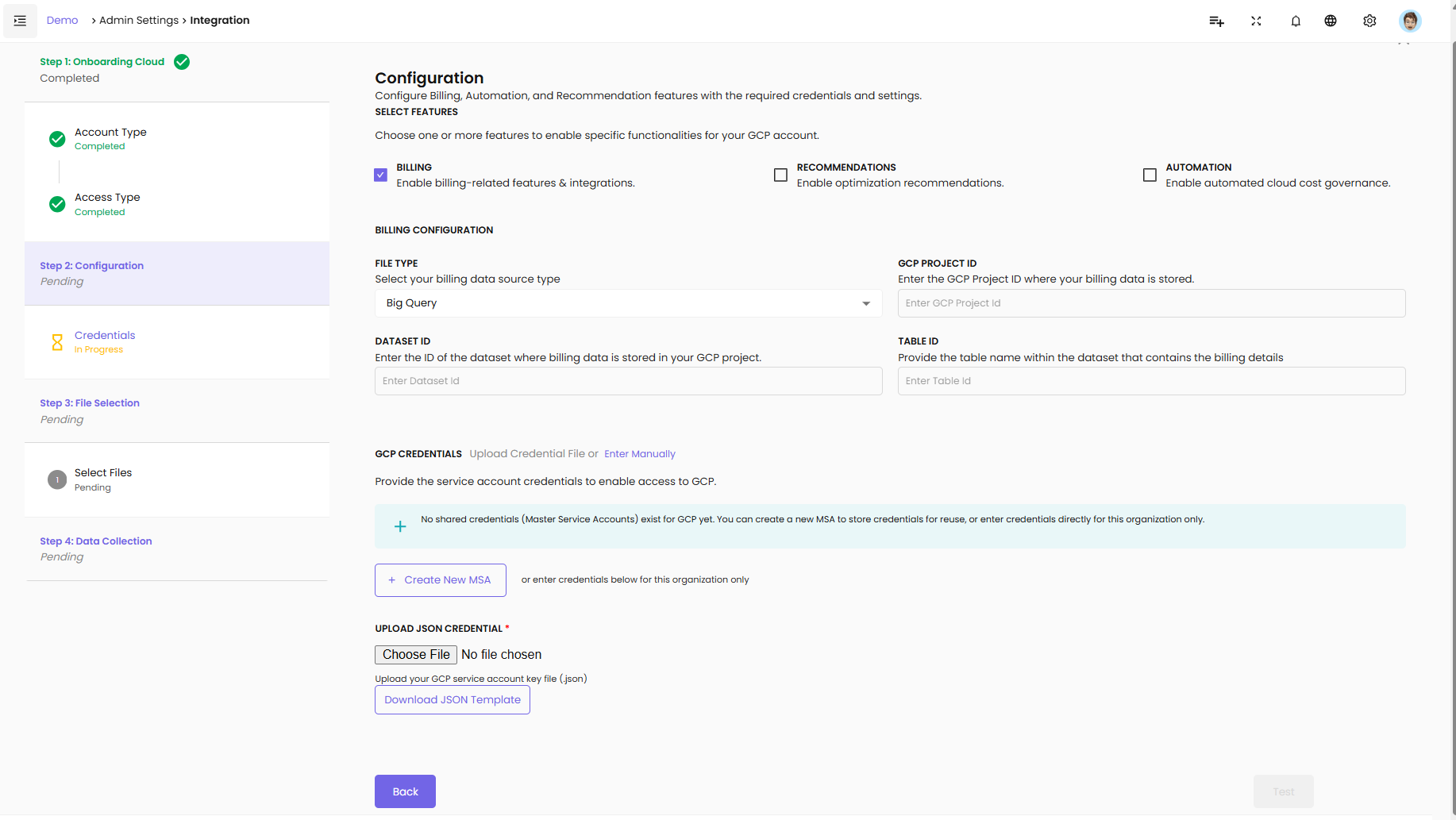
Configuration
Configure Billing, Automation, and Recommendation features with the required credentials and settings.
Select Features:
Choose one or more features to enable specific functionalities for your GCP account:
Billing - Enable billing-related features & integrations
Recommendations - Enable optimization recommendations
Automation - Enable automated cloud cost governance
Billing Configuration:
File Type - Select your billing data source type (e.g., Big Query)
Dataset ID - Enter the ID of the dataset where billing data is stored in your GCP project
Table ID - Provide the table name within the dataset that contains the billing details
GCP Project ID - Enter the GCP Project ID where your billing data is stored
GCP Credentials:
Provide the service account credentials to enable access to GCP.
- No shared credentials (Master Service Accounts) exist for GCP yet. You can create a new MSA to store credentials for reuse, or enter credentials directly for this organization only.
Create New MSA - Create a new Master Service Account
or enter credentials below for this organization only
Upload JSON Credential - Upload your GCP service account key file (.json)
Download JSON Template - Download template for service account key
Click Next to proceed.
Step 3: File Selection
Select Files
Select the billing data files to import and process.
Click Next to proceed to data collection.
Step 4: Data Collection
Data Collection
Configure data collection settings and initiate the import process.
GCP Service Account Requirements
To complete GCP onboarding, you need to create a service account:
Service Account - Create a service account in your GCP project
IAM Roles - Assign the following roles based on enabled features: - Viewer for Recommendations - Billing Account Viewer for Billing - Editor or custom role for Automation
Key File - Generate and download a JSON key file containing: - Service account email - Private key - Project ID
BigQuery Setup - For billing data: - Enable BigQuery Billing Export - Create dataset for billing data - Grant service account access to the dataset